






SensorView™ Output Test Tool
The “Output Test” tool allows you to define specific analog output from your ToughSonic® ultrasonic sensor.
Hold the defined output constant or cycle it as needed while you evaluate your sensor-based system.
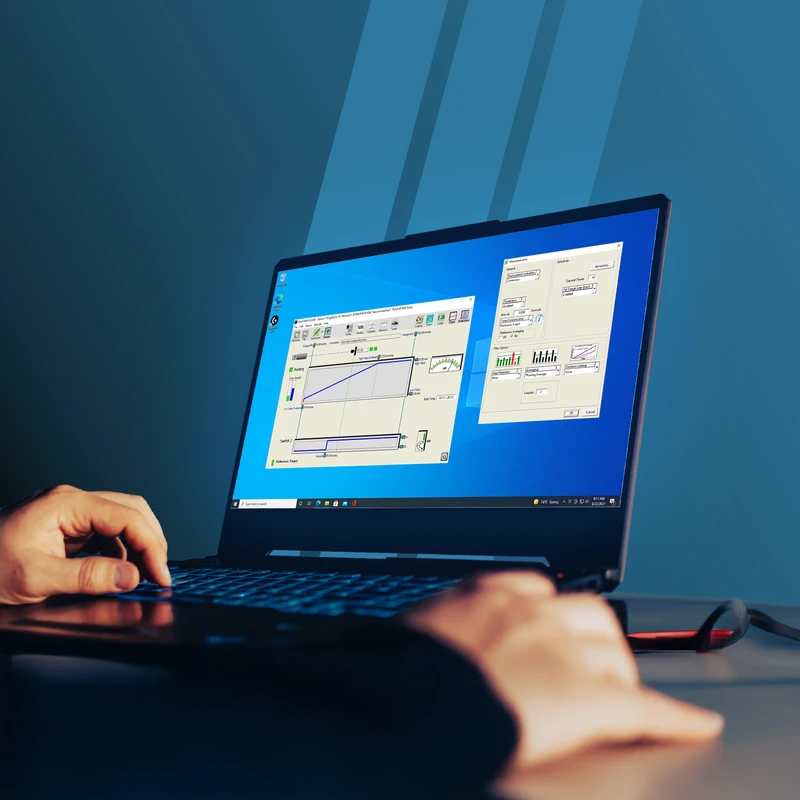
The Output Test is of many time-saving features found in SensorView™ sensor configuration and analysis software. Set your sensor’s analog output at a desired value, then test your system wiring and response using a current meter, voltmeter, or other external system interface.
You can also cycle the sensor switches on and off at defined intervals to verify system responses.
The Output Test can also be used to scale or calibrate downstream equipment.
For example: in some tank level applications, the analog output is fed to a digital display that reports tank volume in gallons or liters.
In this scenario, the Output Test can be used to exercise the analog scale and verify the digital display’s conversion of liquid levels to volume measurements.
Output Testing Ultrasonic Sensors Remotely
With a remote connection, tests can be initiated from the comfort of your desk. This is useful when tests need to be coordinated between an engineering office and remote sites.
The Output Test allows you to remove analog output values as a variable while you are commissioning or troubleshooting ultrasonic sensor-driven systems.
It is one of the many ways that the SensorView PC software provides you with control over your ToughSonic sensors, allowing you to work more efficiently.
View the software in action below:
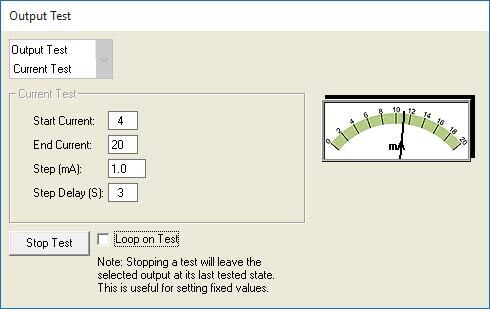
Example: Running a current test.
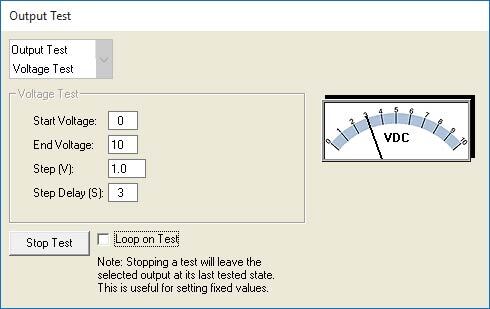
Example: Running a voltage test.
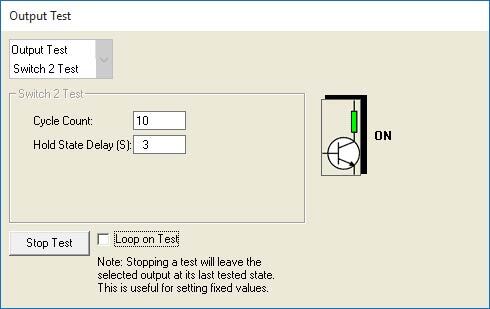
Example: Verifying system response.
Output Testing Tips and Functionality
Connect to your sensor. In SensorView™, open “Output Test” from the sensor pull-down menu after you have achieved a connection.
Choose the analog voltage, analog current, or switch test. Set your start and end parameters, step size and step delay for analog tests, or set the number of cycles and step delay for a switch test. Use the check box to loop your test if desired.
If you stop the test at any point, Output Test will hold that output at the current state until you resume the testing process.
Verify the sensor output you want is functioning as expected prior to connecting the ultrasonic sensor to other equipment.
This is best done on the bench..
- Has the correct output wire been chosen?
- Does the output respond as expected to the distance calibration and/or other parameters you set using SensorView™?
If you have any questions about the "Output Test" tool or other SensorView features, please contact the Senix team. We’re here to help!